Step by step
Wait for an active number
The button and the QR code appear in Settings, Number once your number is active.
Copy the code
Under Text us button for your website, press Copy code. It is one plain link, styled as a blue button that says Text us, pointing at your number.
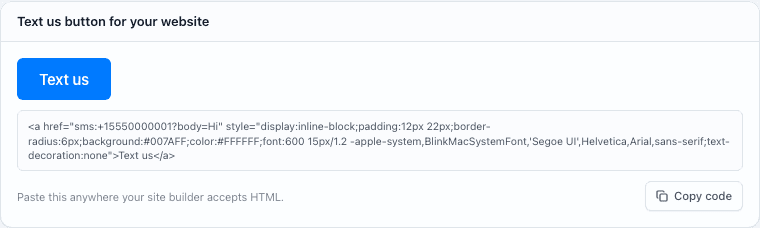
Settings, Number. The preview on top is what visitors see. Paste it into your page
Paste it anywhere your site builder accepts HTML: a custom code block, an HTML element or a footer embed. Put it next to the form or the main button, where people decide.
Test it from your phone
Open the page on your phone and tap the button. Your messages app opens a text to your number, on most phones with Hi already typed. Send it, and the setter replies.
Print the QR code
Under Scan to text, press Download. Scanning the code opens a text to your setter. Put it on a flyer, a slide or a landing page.
Change the look
The snippet is plain HTML. Change the words between the tags, or the background color in the style, to match your page. Leave the link itself alone; that is the part that points at your number.
Put your number everywhere else too
Ads, email signatures, bio links, the thank-you page after a form. The setter answers every text that reaches your number, and nothing that does not.
Questions people ask
- Does the button work on a computer?
- It opens whatever texting app the computer has set up, if any. Most people who tap it are on a phone, so put your number in plain text next to the button for everyone else.
- Can I change the pre-typed Hi?
- Yes. In the snippet, change the word after body= in the link, and write %20 for each space. Keep it short; the lead can edit it before sending.