Step by step
Open Settings, Calendar
You need to be an owner or admin. The tab shows how bookings work today: Built-in, Connected, or your CRM.
Press Connect Google Calendar
Sign in to the Google account whose calendar you book on.
Tick both calendar permissions
Google asks what the app may see and do. Tick both calendar permissions. Skip one and you land back on: Google connected without calendar access. Try again and tick both calendar permissions on the consent screen.
Check it says connected
Back in Settings you see Google Calendar is connected. From now on the setter reads your free and busy time and only offers times you can take.
Settings, Calendar. Connected at the top, your open hours below. Set your open hours
Under Availability, set one open and one close time for each day you take calls, then Slot length, Buffer, Notice and Book ahead. Press Save availability. The setter offers times inside these hours that are also free on your calendar.
Test it
Text your number and ask for a call. Both times offered should be free on your calendar and inside your hours.
Where bookings land
A booked call goes on the connected Google Calendar, and the lead gets a calendar invite once they give their email.
Using a CRM calendar instead
If you connected your CRM and chose a calendar there, that calendar takes the bookings. Connecting Google takes over from it.
Disconnecting and reconnecting
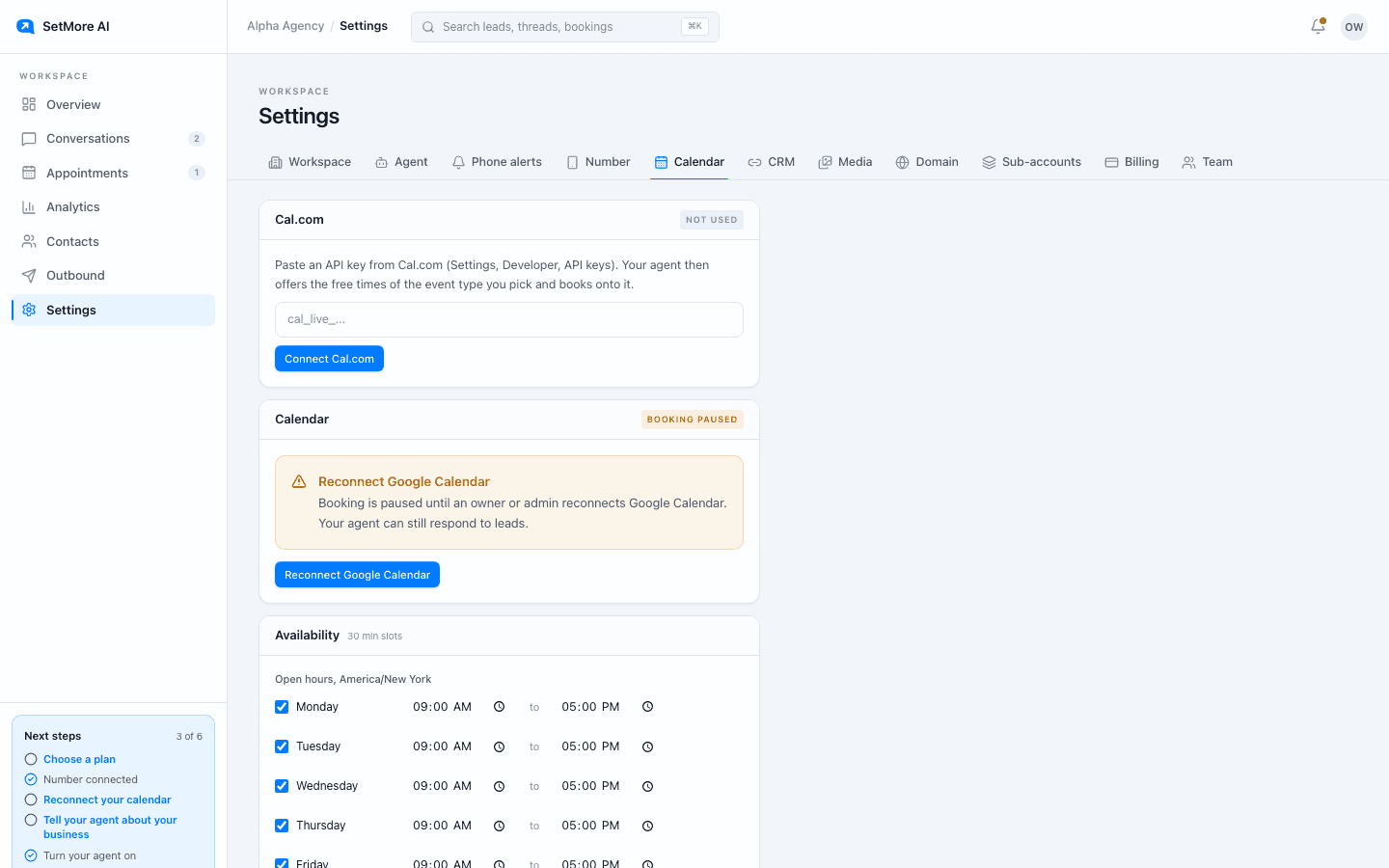
Press Disconnect, then Yes, disconnect. The setter goes back to your built-in availability, or to your chosen CRM calendar if you have one. If Google access is revoked or expires, the tab shows Booking paused and a Reconnect Google Calendar button; reconnect to resume booking.
Questions people ask
- Can a team member connect the calendar?
- Only an owner or admin can connect it. Anyone else who tries gets a message saying so, and nothing changes.
- Does it work from my agency's own domain?
- Yes. Connecting from an agency's portal works the same way; the Google consent screen still shows the SetMore AI app name.