Step by step
Check you have an outbound line
Campaigns send from a two-way line. The Outbound and Agency plans include one; on Business you add one under Settings, Workspace. Without one, Outbound lets you build and confirm lists but not send.
Export the registrants who agreed to texts
From your webinar tool, export registrants as a CSV with phone, name and email columns. Only people whose registration form said they would receive texts belong on this list.
Upload and check the file
In Outbound, under Upload a list, choose the CSV (up to 5 MB and 2,000 rows) and press Check this file. Columns named phone, name or email are matched automatically. You see how many rows are ready, how many need a look, and how many are duplicates.
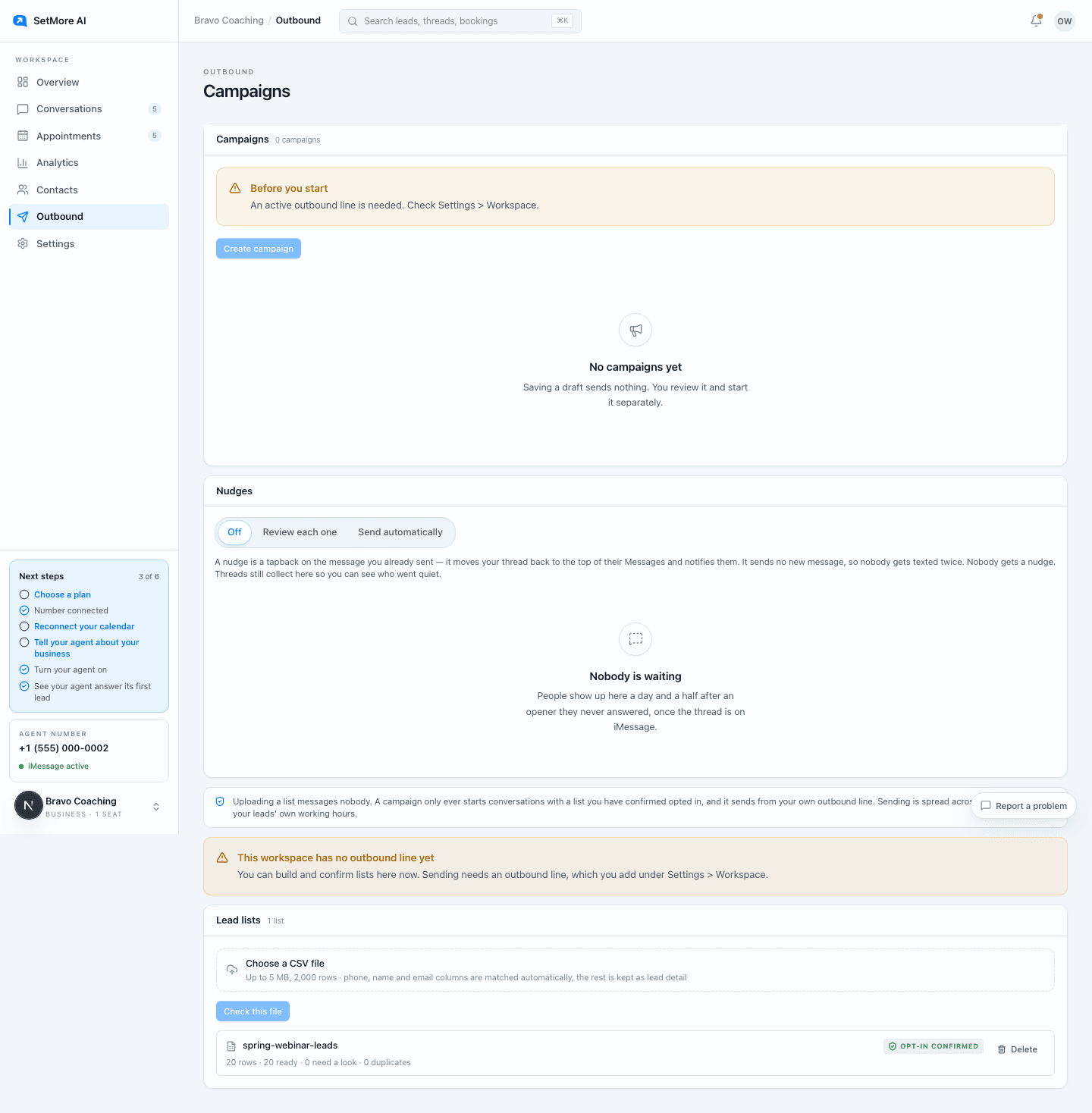
Outbound. Performance and campaigns at the top; upload and confirm your list at the bottom. Confirm how they opted in
For How did these people agree to hear from this business, choose They submitted a form that says they will receive texts. Tick that none of the numbers were purchased, scraped or taken from a directory, then press Yes, I confirm all of that. Your name, the time and those statements are recorded.
Write one opener
Press Create campaign. Name it, pick the confirmed list, the outbound number and the agent for replies, then write the first message. It must say which business it is from, and it is plain text with no link and no attachment. For example: Hi, it's Dana at Peak Coaching. You registered for Tuesday's workshop. Did you get to watch it?
Set the pace
Set the daily limit on new contacts: 30 by default, up to 50, shared by every campaign on the same number. Narrow the start and end hour if you like. Sends are spread through the day inside each lead's own 8am to 8pm.
Save, review, start
Press Save campaign draft; saving sends nothing. When you are ready, press Review and start, read the confirmation, and press Confirm and start sending. Starting re-confirms the opt-in on the list.
Let the setter take the replies
Each person gets one message, and nobody gets a second until they write back. When they do, the setter answers from your Agent settings and books the call like any inbound lead, and the thread appears in Conversations.
Pausing a campaign
Press Pause campaign to stop new sends; a message already being sent may finish. Two things stop a campaign without you. Line health at Monitor or worse stops it for good, and the card says why. A protection hold on the line only holds it, and it resumes by itself when the hold lifts.
Who never goes on the list
Bought, scraped or directory numbers are banned outright. Anyone who has opted out gets nothing further from your workspace, whichever list they are on.
Questions people ask
- Will people who ignore the opener get a follow-up?
- No. A campaign sends one message per person, and nobody gets a second text until they reply.
- What happens if someone replies STOP?
- They are opted out at once and get nothing further from your workspace, from any campaign or any number.