Step by step
Brand the portal
In Settings, Workspace, under Brand, set Portal name, Accent color and Support email, and upload a logo: PNG, JPG, WebP or GIF, up to 800 KB. Clients see them in the portal and on the sign-in page, and the portal name in their emails. Set the support email before you invite anyone.
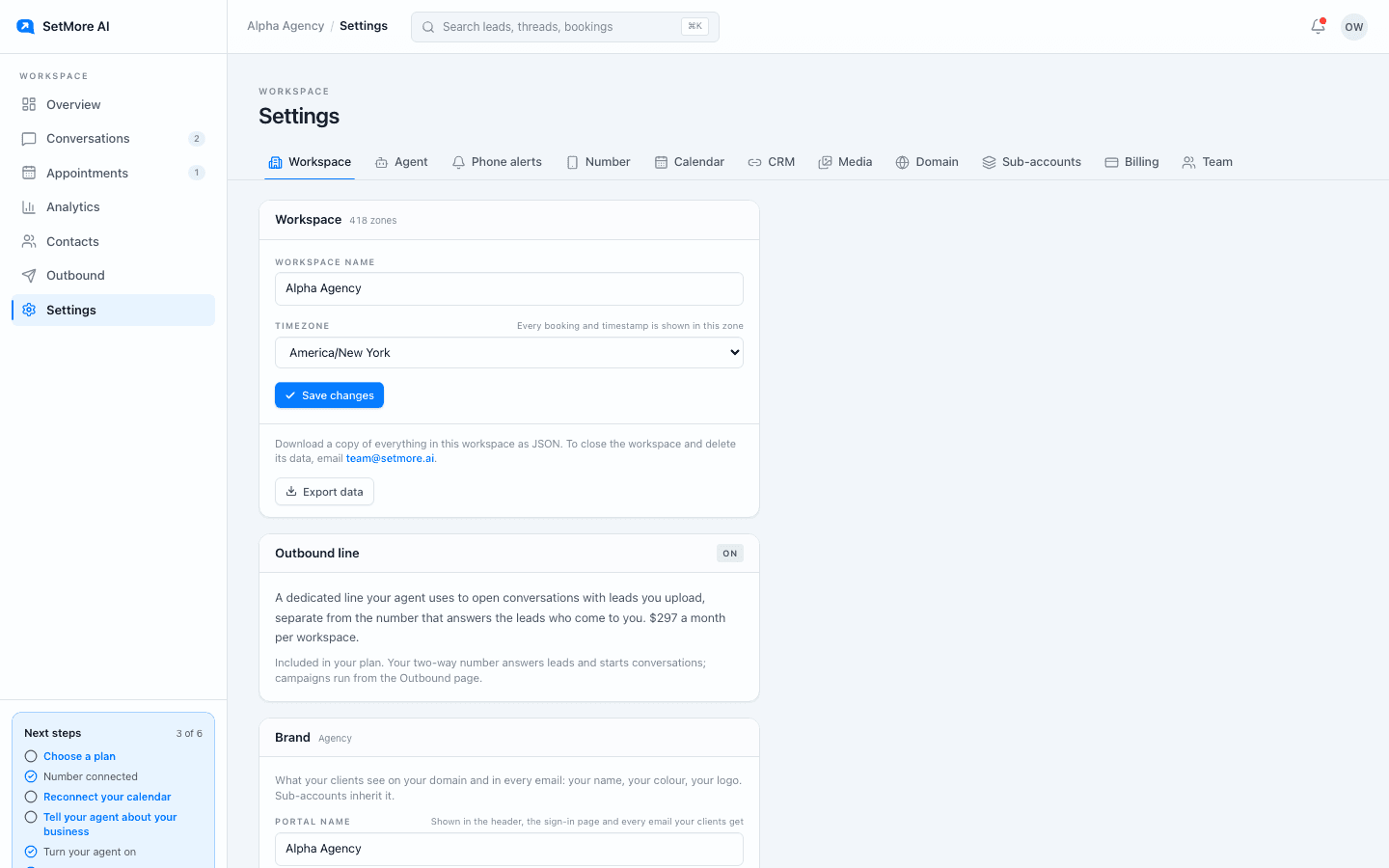
Settings, Workspace. Brand sits below the workspace details. Point your domain
In Settings, Domain, add a hostname such as portal.youragency.com. At your DNS provider, add the two records the page shows: a CNAME to connect.setmore.ai and a TXT record that proves the domain is yours. Press Check. Done looks like Live.
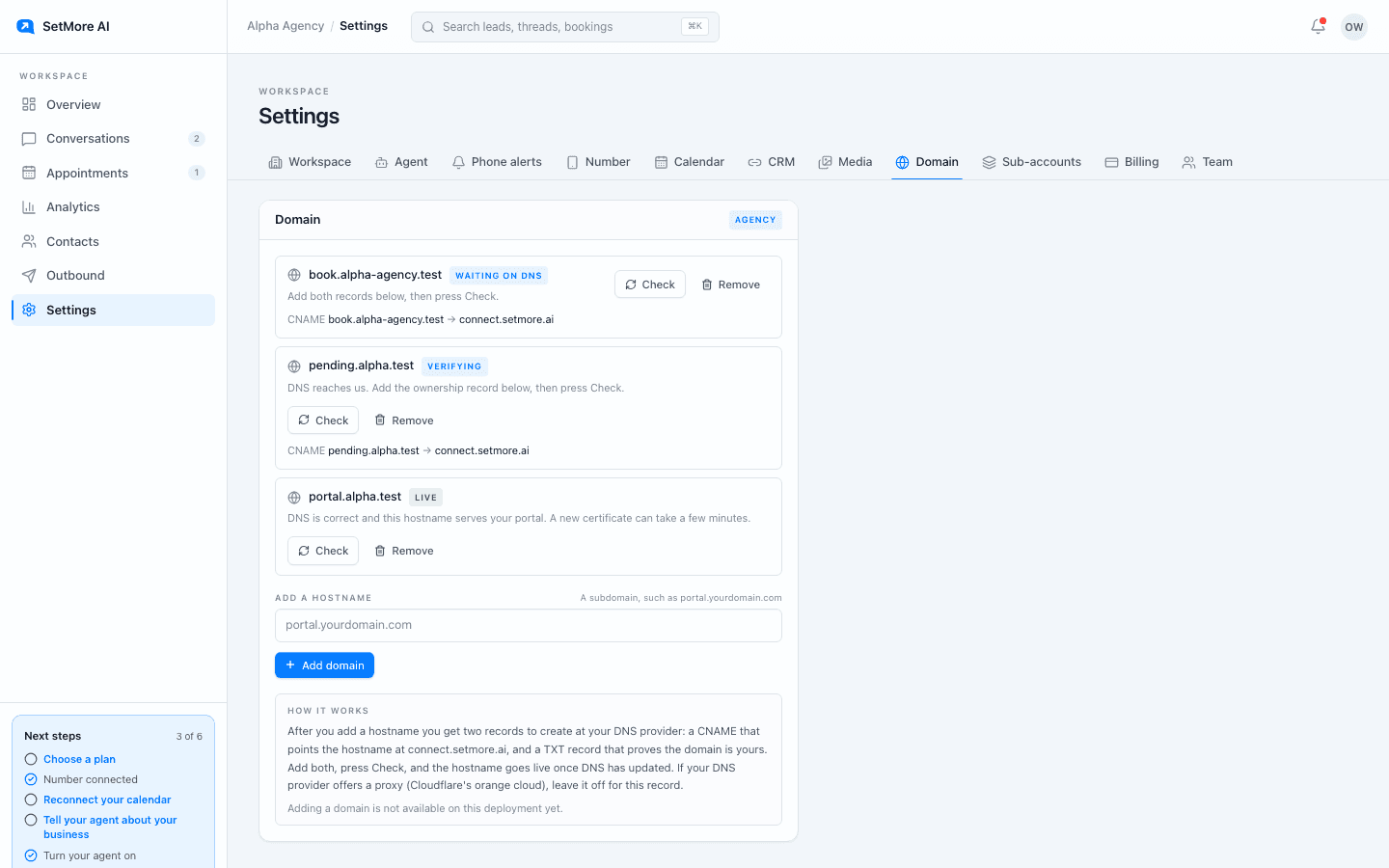
Settings, Domain. Live means DNS is correct and the hostname serves your portal. Create the client
In Settings, Sub-accounts, enter the Client business name and the Owner email, then press Create sub-account, or Add a seat and create when a new seat is needed. A new seat is prorated and charged to your card today. Done looks like the client listed as Active.
Create clients one at a time
Wait for each client to show Active before you create the next. A second create while one is still in progress is refused, so nothing is billed twice.
Let the client sign in
The owner email gets a sign-in link to your portal, on your domain once it is live. The client sees your brand and only their own workspace.
Switch into the client's workspace
Open the workspace menu at the bottom left and switch into the client. Or leave the next step to the client; everything below works the same from their login.
Finish the client's setup
Inside the client workspace, press Continue setup in the sidebar: number, calendar, agent. For the agent, the playbook for the client's industry fills the Agent tab in a few minutes.
Send the first text
Text the client's new number from your own phone. A reply in the client's Conversations means the client is live.
Before you start
Sub-accounts need an active Agency plan whose first payment has gone through. For each client, have their business name, the email of the one person who will run their workspace, and the area code they want. One email runs one workspace.
Archiving a client
Settings, Sub-accounts, Archive frees the seat for another client for the rest of the current period, at no extra charge. The client's line is released when the period ends. There is no refund, and archiving cannot be undone.
Emails your clients get
Sign-in emails carry your portal name, and their links point at your domain. Emails come from a SetMore AI address; booking emails show the client's business name as the sender name.
Questions people ask
- How long does the domain take?
- Often a few minutes after both records are added, longer with some DNS providers. If a check finds DNS wrong you get an email, and a domain that stays wrong for about 24 hours stops serving until it is fixed.
- Can one client see another client?
- No. A client signs in to their own workspace only. You see every client from your agency workspace and can switch into each one.